



- Having Problems with your Online Content?
- Your Profile
- Instructor-Led Courses and Tutoring
- Online Courses
- Online Practice Tests
- Princeton Review Test Prep books
Having Problems with your Online Content?
Princeton Review students may have access to online content that supplements their courses, tutorials, or book purchases. Depending on the course you are enrolled in or the product you have purchased, this content may include full-length tests, practice drills, online lessons, videos or other supplemental material
You can view your online content via your Student Dashboard. To reach your Student Dashboard follow these steps:
- Select My Account at the top of the screen and then Student Tools.
- Sign In with your username and password.
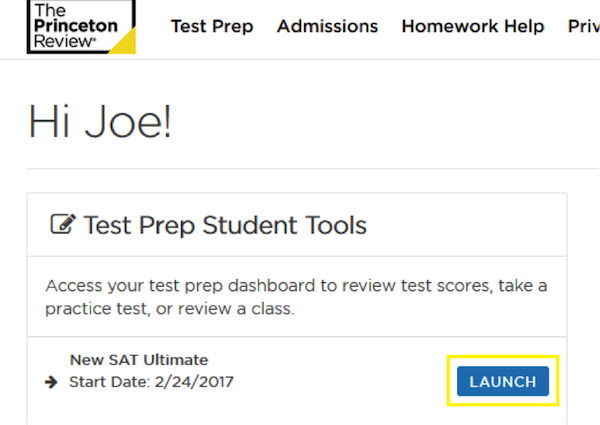
- Click the Launch button next to the content you want to view.
This will take you to a screen that looks like this:
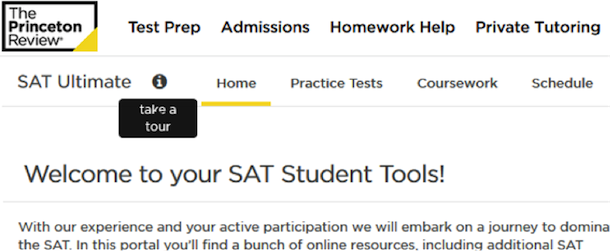
You may have the option to take an online tour to view the content options you have in your Student Dashboard. Click on the information icon to view the tour.
Note that if you are enrolled in more than one course, you can return to your Student Tools list and Launch another Student Dashboard.
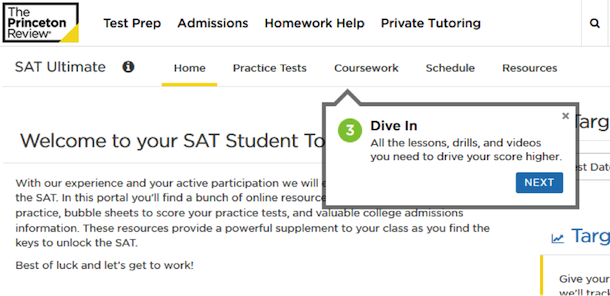
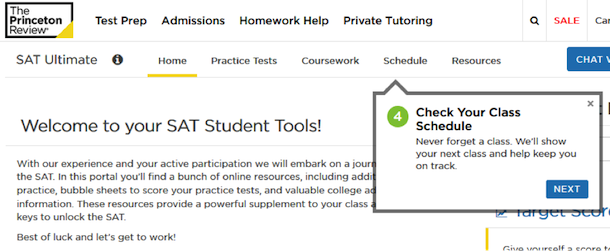
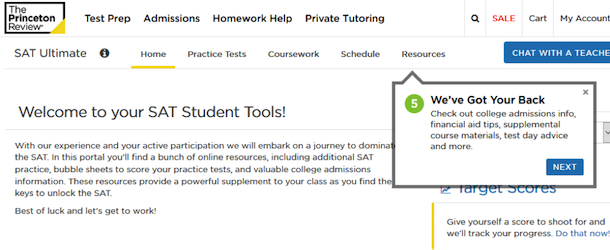
Your Online Content may have some or all of the Tabs shown below. See the Online Tour details for more information about your course – or take the tour in your own Student Dashboard!
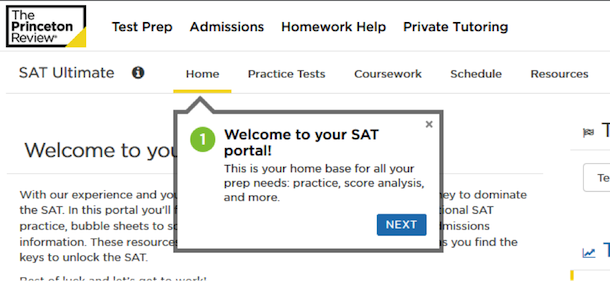
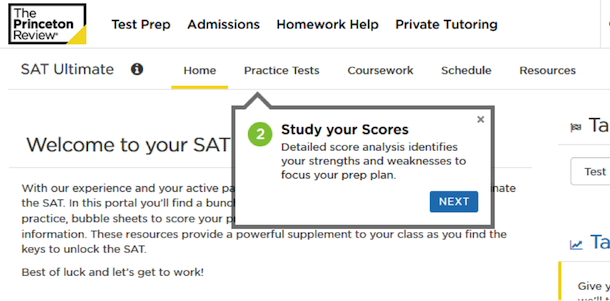
All modern browsers should allow full access to your online content. No special software or downloads are required.
Most modern browsers are set to automatically update when needed. However, if you need to manually update your browser see the links below.
Internet Explorer (supported for Windows Only) http://windows.microsoft.com/en-us/internet-explorer/download-ie
Google Chrome (supported for Windows or Mac) https://www.google.com/intl/en/chrome/browser/
Firefox (supported for Windows or Mac) http://www.mozilla.org/en-US/firefox/new/
Safari (supported for Mac Only) http://www.apple.com/safari/
Note: Microsoft Edge The Microsoft Edge browser is a part of Windows 10 and consequently, so are its updates.
JavaScript should be enabled by default in most browsers. You can check the JavaScript settings through the steps below.
Internet Explorer (Windows Only)
- Click Tools and then Internet Options.
- In the Internet Options window, select the Security tab, and select the Custom level… button.
- In the Security Settings window, scroll down to Scripting and click the Enable button for Active scripting .
- Click OK to close the Security Settings window.
- Click OK to close the Internet Options window.
Edge Browser (Windows Only)
- JavaScript is enabled by default in Edge Browser
Google Chrome
- Click the three-dot menu icon to the right of the Address bar and select Settings .
- In the search box at the top type JavaScript
- Click Content settings
- Click JavaScript – Allowed.
- Close Options tab.
Firefox
- Open a new tab, and then, in the address bar, type about:config.
- Press Enter or Return.
- You'll see a "This might void your warranty!" warning. Click I'll be careful, I promise! to continue.
- In the search bar, enter javascript.enabled, and then, in the search results, under "Preference Name", locate javascript.enabled.
- Right-click (Windows) or Ctrl-click (OS X) javascript.enabled, and then select Toggle to change its "Value" entry to true (enabled) or false (disabled).
- When you're finished, close the "about:config" tab.
Sarfari
- On the web browser menu click Safari and select Preferences .
- In the Preferences window select the Security tab.
- Mark the Enable JavaScript checkbox.
- Close the Preferences window.
Internet Explorer (Windows Only)
- Click Tools and then Internet Options .
- In the Internet Options window, select the Privacy tab, and click the Advanced button.
- In the Advanced Privacy Settings window, select the Override automatic cookie handling checkbox.
- Select Accept for First-party Cookies and Third-party Cookies .
- Select the Always accept session cookies checkbox.
- Click OK to close the Advanced Privacy Settings window.
Edge Browser (Windows Only)
- Click the three-dot menu icon on the top right
- Select Settings.
- Scroll down to the bottom of the menu and click View Advanced Settings.
- Press the dropdown arrow under the Cookies field.
- Select Don't Block Cookies.
Google Chrome
- Click the three-dot menu icon to the right of the Address bar and select Settings .
- In the search box at the top type cookies
- Click Content setttings
- Enable Cookies - Allow sites to save and read cookie data (recommended)
- Close Options tab.
Firefox
- Click the hamburger icon to the right of the Address bar and select Options .
- In the Options enter cookies in the search field.
- Check the box next to Accept cookies from websites.
- Click OK .
Sarfari (Mac Only)
- On the web browser menu click Safari and select Preferences .
- In the Preferences window select the Privacy tab.
- Click the Allow from websites I visit option.
- Close the Preferences window.
Adobe Flash Player Download
http://get.adobe.com/flashplayer/
Adobe Reader Download
http://get.adobe.com/reader/
Below are the instructions for disabling your browser's native pop-up blocker. Note that various third party toolbars and other applications may also block pop-ups that may need to be separately disabled:
Internet Explorer (Windows Only)
- Click Tools and then Internet Options .
- In the Internet Options window, select the Privacy tab.
- Under Pop-up Blocker , click the Settings button.
- In the Pop-up Blocker Settings window, enter the address "www.princetonreview.com" and click Add .
- Click Close .
- Click OK .
Edge Browser (Windows Only)
- Click the three-dot menu icon on the top right
- Select Settings.
- Scroll down to the bottom of the menu and click View Advanced Settings.
- Toggle off Block Pop-ups
- Close Settings.
Google Chrome
- Click the three-dot menu icon to the right of the Address bar and select Settings .
- Type Popups into the Search field.
- Click Content Settings
- Under Pop-ups Click Add and enter the address "" and Click Add.
- Close Settings tab.
Firefox
- Click the hamburger icon to the right of the Address Bar and select Options .
- In the Options enter pop-up in the search field.
- Click Exceptions next to Block Pop-up windows.
- Enter the address "www.princetonreview.com" and click Allow.
- Click Save Changes.
- Close Options tab.
Sarfari (Mac Only)
- On the web browser menu click Safari and select Preferences .
- In the Preferences window select the Security tab.
- Uncheck Block pop-up windows .
- Close the Preferences window.
If you see pop-ups or underlined words on the page that look like links they may actually be embedded advertisements.
First, run a virus scan to make sure that the problem exists in your browser.
You can also check to see if there is a search accelerator or download manager extensions installed on your computer and, if possible, disable these types of extensions.
If the first two options don't stop the pop ups, check your Internet Service Provider service agreement to see if they modify website pages to include third party ads as a way generating revenue.
Your Profile
Your username on our website is also your email address. If your email address changes, you may want to update your username and contact information on our site to reflect that. To update your email address, just follow these steps:
- login using your current email address
- click “My Account” in the top right
- select Settings from the dropdown
- select “Change your account login”
- Update your username to your new email address and select “save”
Just remember: the next time you log into the website, you'll want to use your new email address to log in.
You can change your password at any time by following these steps:
- login using your current email address
- click “My Account” in the top right
- select Settings from the dropdown
- select “Change your account login”
- enter your current password
- enter your new password and then reenter your new password to confirm
- select “save”
Just remember: the next time you log into the website, you'll want to use your new password to log in.
You can update your contact information on our website at any time by following these steps:
- login using your current email address
- click “My Account” in the top right
- select Settings from the dropdown
- select “Update your contact information”
- Update your information and click “save”
You can update your contact information on our website at any time by following these steps:
- login using your current email address
- click “My Account” in the top right
- select Settings from the dropdown
- select “Change your account login”
- Check or uncheck the boxes to subscribe to or unsubscribe
- Click "Submit"
Instructor-Led Courses and Tutoring
Princeton Review students may have access to online content that supplements their courses, tutorials, or book purchases. Depending on the course you are enrolled in or the product you have purchased, this content may include full-length tests, practice drills, online lessons, or other supplemental material.
You can view your online content via your Student Dashboard. To reach your Student Dashboard follow these steps:
- Select My Account at the top of the screen and then Student Tools.
- Sign In with your username and password.
- Click the Launch button next to the content you want to view.
This will take you to a screen that looks like this:
You may have the option to take an online tour to view the content options you have in your Student Dashboard. Click on the information icon to view the tour.
Note that if you are enrolled in more than one course, you can return to your Student Tools list and Launch another Student Dashboard.
Your Online Content may have some or all of the Tabs shown below. See the Online Tour details for more information about your course – or take the tour in your own Student Dashboard!
All modern browsers should allow full access to your online content. No special software or downloads are required.
To view your test scores, follow these steps:
- Select My Account at the top of the screen and then Student Tools.
- Sign In with your username and password.
- Click the Launch button next to the course you want to view.
- Click Practice Tests and view your scores listed under each test listing on the left navigation pane.

To view your score report, click the "View" link for the appropriate test or drill.
To view your course schedule, follow these steps:
- Click the "Student Tools" link at the top of the screen
- If necessary, enter your username and password and click "Login"
- Click the Launch button next to the course you want to view.
- Click Schedule
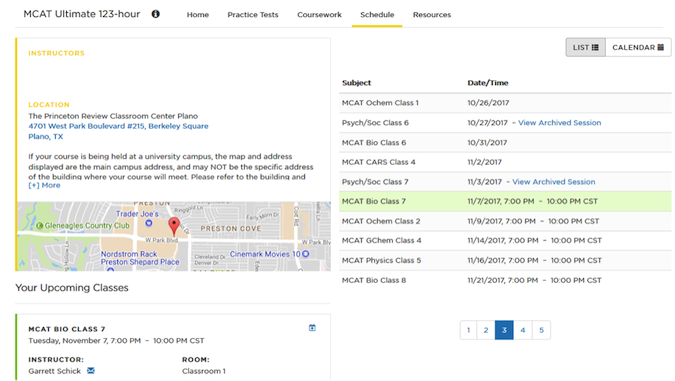
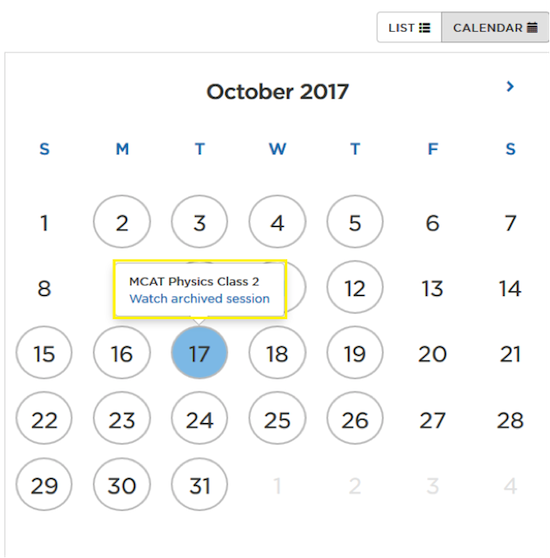
If you are taking a course in person, clicking the Schedule button brings up a detailed course schedule with location information. If you are a LiveOnline student, you can find links to your scheduled class sessions, available 15 mins before the scheduled course time, and to recorded sessions, posted after the live session has completed, in this window.
In Person course Schedule page
LiveOnline course Schedule page - Class Launch

LiveOnline Class Recording
If you are prepping for any of the tests that are administered on paper (including the SAT, ACT, and LSAT), you may have the option to score your pencil-and-paper practice tests from your Student Dashboard. To score your tests, follow these steps:
- Click the "Student Tools" link at the top of the screen
- If necessary, enter your username and password and click "Login"
- Click the Launch button next to the course you want to view.
- Click Practice Tests
- Click Practice Tests and click Start next to the test link you’d like to score.
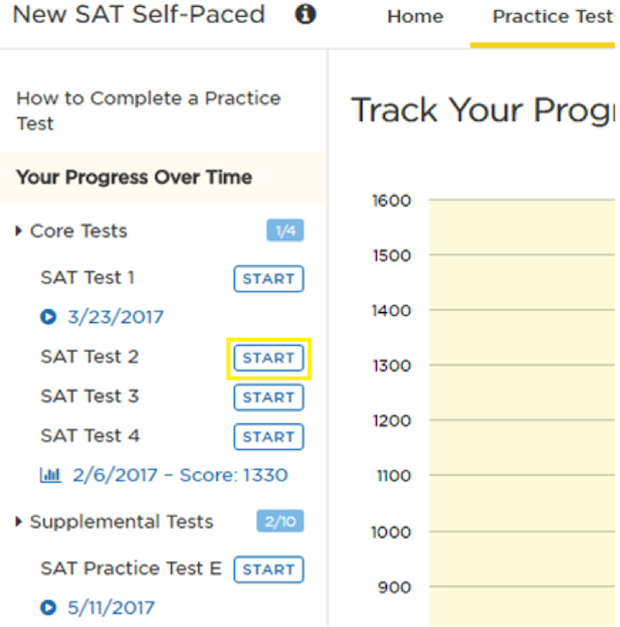
If you must pause entering your answers, you can resume entering answers at any time by clicking on the resume link listed below your test.
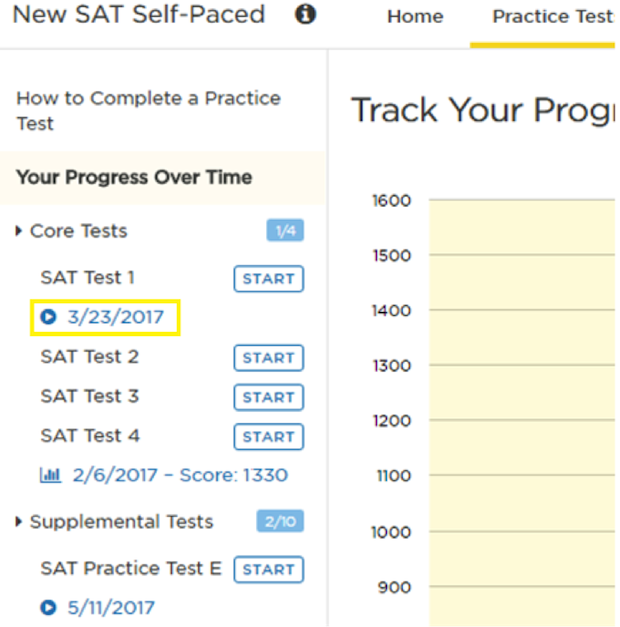
If you are prepping for any of the tests that are administered via computer (including the GRE, GMAT, and MCAT), you will be required to take your tests online. Some students prepping for other tests will also have the option to take certain tests in a full online test window. To take these tests, follow these steps:
- Click the "Student Tools" link at the top of the screen
- If necessary, enter your username and password and click "Login"
- Click the Launch button next to the course you want to view.
- Click Practice Tests
- Click Practice Tests and click Start next to the test link you’d like to score.
If you must pause entering your answers, you can resume entering answers at any time by clicking on the resume link listed below your test.
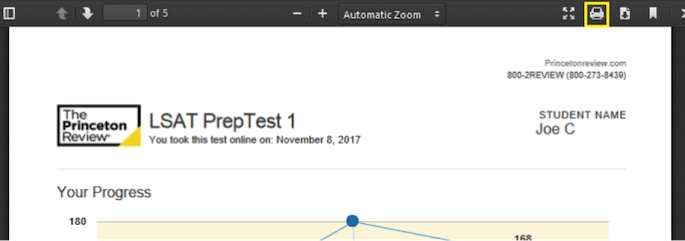
To Print your Score Report follow these steps:
- Select My Account at the top of the screen and then Student Tools.
- Sign In with your username and password.
- Click the Launch button next to the course you want to view.
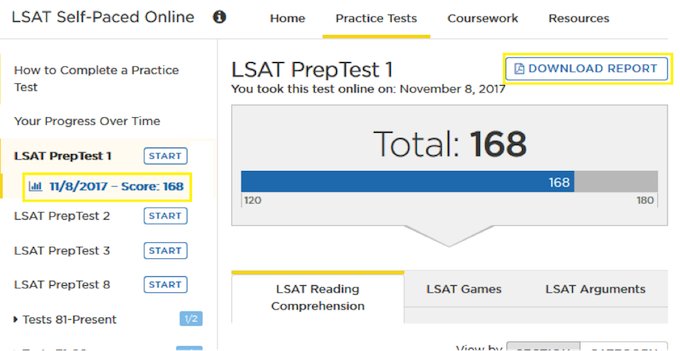
- Click Practice Tests and click a score results link to view your Online Score Report
- Click Download Report above your Online Score Report.
- Click Print button on your downloaded score report.
To find a course or a tutor in the U.S. or Canada, click on the test you are interested in prepping for from our homepage, www.princetonreview.com , and enter your zip code. Then select the course or tutoring offering you are interested in to learn more.
To speak with a staff member at your local TPR office, call 866-TPR-PREP.
Princeton Review offers classroom and tutoring programs in most cities across the U.S. and Canada. However, if you can't locate a course in your area please explore the various Online course options. This could take the form of our LiveOnline courses, taught by an expert instructor, or the form of an Online only course, which offers the content but doesn't involve any instructors.
Online Courses
Princeton Review students may have access to online content that supplements their courses, tutorials, or book purchases. Depending on the course you are enrolled in or the product you have purchased, this content may include full-length tests, practice drills, online lessons, or other supplemental material.
You can view your online content via your Student Dashboard. To reach your Student Dashboard follow these steps:
- Select My Account at the top of the screen and then Student Tools.
- Sign In with your username and password.
- Click the Launch button next to the content you want to view.
This will take you to a screen that looks like this:
You may have the option to take an online tour to view the content options you have in your Student Dashboard. Click on the information icon to view the tour.
Note that if you are enrolled in more than one course, you can return to your Student Tools list and Launch another Student Dashboard.
Your Online Content may have some or all of the Tabs shown below. See the Online Tour details for more information about your course – or take the tour in your own Student Dashboard!
All modern browsers should allow full access to your online content. No special software or downloads are required.
You can view the length of your online entitlements right in your student portal page. The dates that your course is available to you displays right next to the "Launch" link in "Test Prep Student Tools". The Access Expires notification goes from green to red when there are less than 30 days left in the course.
Course extensions can be purchased at the following rates:
- $99 for 1 year for ACT, SAT and PSAT courses
- $199 for 120 days for LSAT, GMAT and GRE courses
MCAT Courses have the following options:
- 30 Days - $199
- 90 Days - $299
- 180 Days - $499
- 365 Days - $899
If you are interested in extending your course access, please contact 888-955-4600.
Online Practice Tests
All modern browsers should allow full access to your online content. No special software or downloads are required.
Absolutely! You can retake your online practice tests as many times as you like, and each time you take the test will produce a new score report.
Our GMAT tests are an exception to this rule. In order to retake a GMAT test, you will be forced to delete the scores on the previous exam. However you will still be able to view the test’s score report after deleting.
 Opt-Out Signal Honored


